 Image 1 of 5
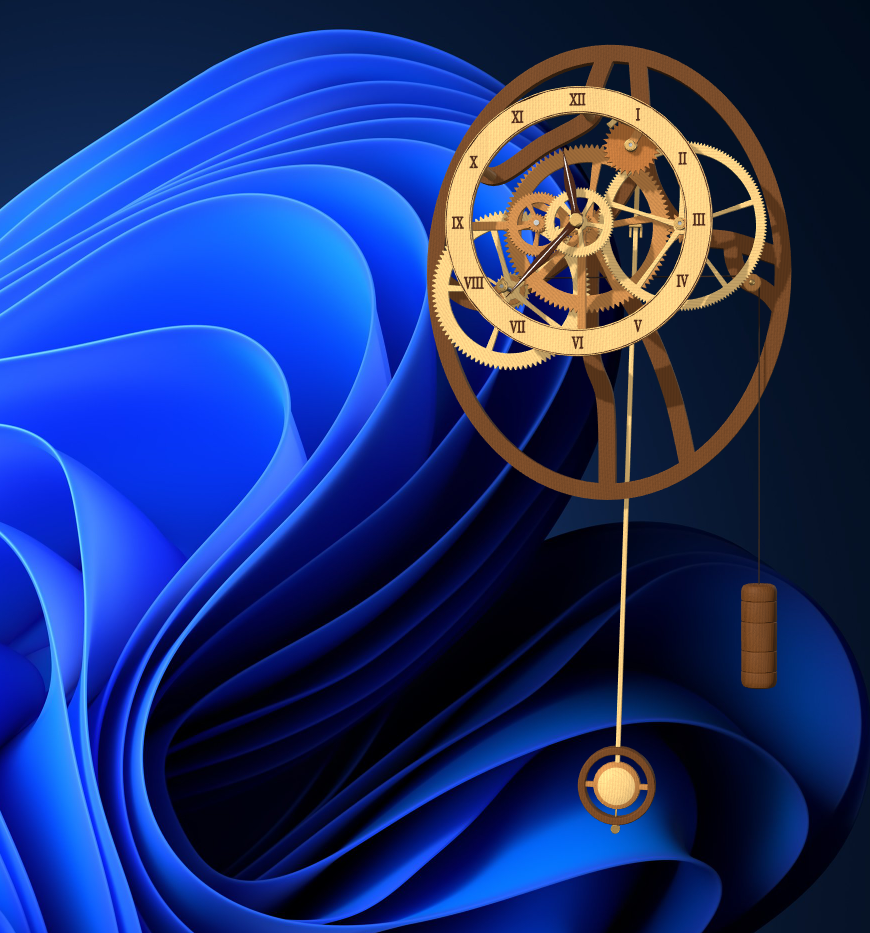 Image 2 of 5
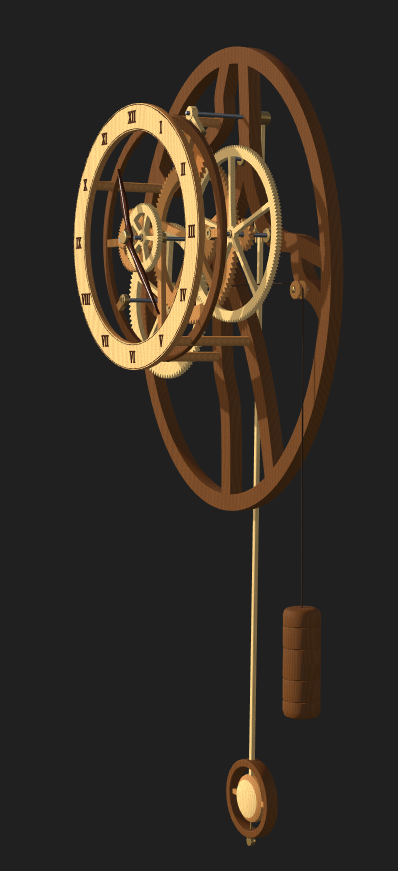 Image 3 of 5
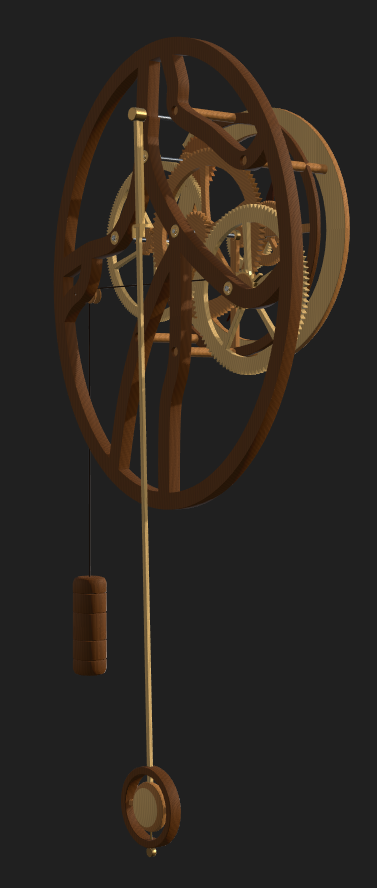 Image 4 of 5
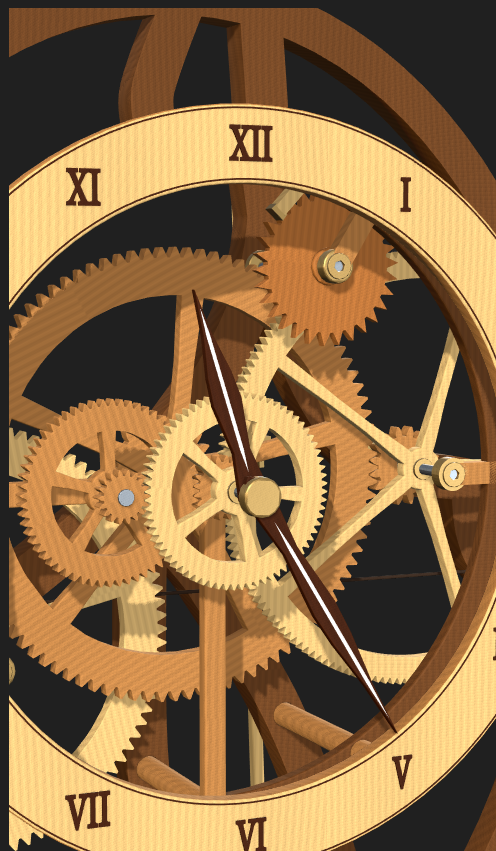 Image 5 of 5
Products / Desktop apps / Windows
Open Frame Clock
Mechanical motion. On your desktop.
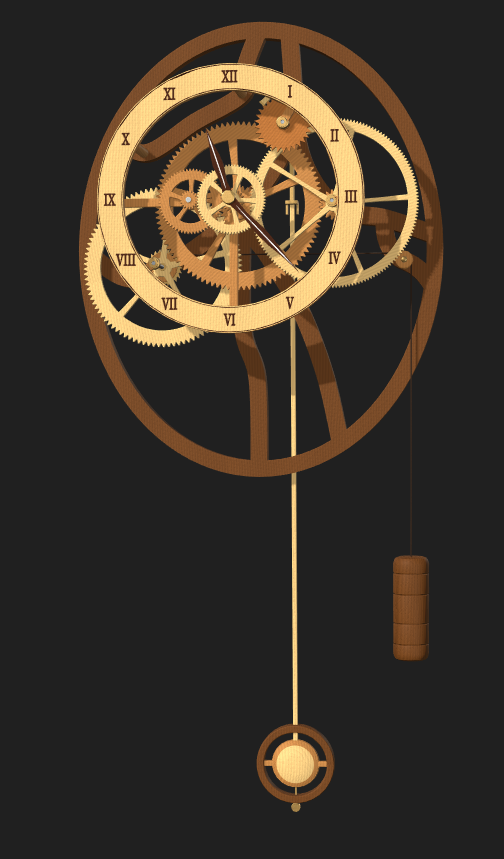
A fully animated 3D mechanical desktop clock for Windows. Watch the visible gear train, escapement, and pendulum work together while the hands keep time with your computer.
Windows desktop app · v1.0.0Approximately 30 MB download · 108 MB installed
No Blender or Godot installation required.
Open Frame Clock v1.0.0 · Windows desktop application.
Use Add to Cart below for secure Squarespace checkout with PayPal. Your installer is delivered after a successful purchase.
On your Windows desktop
Transparent desktop display
Keep the clock on your Windows desktop, with ordinary icons usable around its transparent surroundings.
Left-drag to move the clock around the desktop.
Visible mechanics / Everyday time
A working mechanism, always in view.
- Transparent desktop display
Keep the clock on your Windows desktop, with ordinary icons usable around its transparent surroundings. - Time from your computer
The hands synchronize with your computer’s system clock. - Animated mechanical detail
A visible working gear train, escapement, and swinging pendulum bring the mechanism to life. - Interactive 3D viewing
Move, pan, zoom, and orbit to find your preferred view. - Your preferences, remembered
Desktop position, zoom, pan, rotation, sound, and other settings are saved. - Simple daily use
Tray controls, single-instance behavior, and optional Start with Windows. A second launch shows the existing clock.
Inside Open Frame Clock
Explore the mechanism.
Interactive 3D viewing
Move, pan, zoom, and orbit to find your preferred view.
Three-quarter view · See the depth of the model and its side structure.
A complete 3D object
See the other side.
Orbit around the clock to explore its modeled rear structure and the mechanism behind the face.
Visible mechanics / Close up
Mechanical detail
A visible working gear train, escapement, and swinging pendulum bring the mechanism to life.
Look closely at the clock face, hands, gears, shafts, and bushings.
Make it your own
Controls
Use the visible clock, rather than its transparent surroundings.
- Left-drag
- Move the clock around your desktop
- Right-drag
- Pan the 3D view
- Mouse wheel
- Zoom in or out
- Middle-mouse drag
- Rotate / orbit the clock
- R
- Reset the 3D view
- S
- Open / close Settings
- Esc
- Exit the clock
Settings and the system tray
Use the tray menu to Show, Hide, open Settings, toggle Start with Windows, or Exit. The tray icon may be in the Windows notification-area overflow menu.
Settings includes sound on/off, volume, Reset View, and a separate Reset Desktop Position control. Start with Windows is optional and is not enabled during installation.
Before you install
System requirements
- Windows 10 or Windows 11, 64-bit x64 PC, with desktop composition enabled.
- OpenGL 3.3-capable graphics with a working vendor driver. Intel UHD 630 integrated graphics was tested; a dedicated GPU is not required.
- Installer: 31,452,548 bytes (approximately 30 MB / 30.00 MiB).
- Installed application: approximately 108 MB (108.48 MiB). Allow 150 MB disk space plus temporary installation space.
- Approximately 350 MB free RAM for the app, in addition to Windows.
- Sound output is optional. Performance varies with graphics and display size.
Windows 11 was tested locally. Windows 10 compatibility is targeted but has not been verified on a separate Windows 10 computer. ARM64 is not validated.
Private / Offline
Made to run on your computer.
No account, internet connection, or telemetry is required. The application makes no external network connections.
A local-only connection on your own computer lets a second launch show the existing clock. It does not contact the internet. Preferences are stored locally.
Windows release / Version 1.0.0
Installation
After a successful purchase, you will receive Open_Frame_Clock_Setup_v1.0.0.exe.
- Download the installer from the verified customer download page.
- Run the installer for your Windows account. Administrator access is not required.
- Open Open Frame Clock from the Windows Start Menu or its desktop shortcut.
No Blender, Godot, Python, or development tools are required.
You may move or delete the desktop shortcut without uninstalling the clock. Use normal Windows options to pin the app to Start or the taskbar where supported. You can always reopen it from the Windows Start Menu.
This release is unsigned. Windows may display a SmartScreen or unknown-publisher warning. Verify the download source and checksum; contact Wolfgang Engineering if unsure.
Verify the installer (SHA-256)
00d7a8257a4b6525b009fe0a6665de1f3fe30fcde1dc084b084148ed8359a206
Uninstalling
Exit the clock from its tray menu, then uninstall Open Frame Clock through Windows Settings → Apps. Saved preferences remain available for reinstalling.